How to Set Up a Home Server DE: The Ultimate German Guide
August 11, 2026 17 min read 3,342 words
Transform your digital life with a personal home server, gaining control over data, media, and smart home automation.
Start Your Server Journey
Why Set Up a Home Server in Germany (DE)?
 Photo: cottonbro studio / Pexels
In an increasingly data-driven world, the desire for control over personal information is paramount. Setting up a home server in Germany, or anywhere for that matter, empowers you to reclaim ownership of your digital life. Beyond just storing files, a home server acts as a central hub for a myriad of digital activities, offering unparalleled flexibility and privacy that commercial cloud services often can't match. For German users, data privacy concerns are particularly acute, making a local, self-hosted solution even more appealing. You can transform an old, unused computer into a powerful machine capable of streaming media to all your devices, hosting a private cloud for file synchronization, running smart home automation tools, or even hosting your own website or game server. The initial investment, whether in time or money, often pays off by eliminating recurring subscription fees for various services and providing a robust, customizable platform.
One of the primary benefits is centralized data storage. Instead of scattering your photos, videos, and documents across multiple external hard drives or different cloud providers, a home server consolidates everything in one secure location. This simplifies organization, makes backups more efficient, and ensures that your precious memories and important documents are always accessible from anywhere in your home network, or even remotely with proper configuration. Imagine having all your family photos organized, instantly viewable on your smart TV, and backed up automatically – that's the power of a home server.
Furthermore, a home server excels at media streaming. Platforms like Plex or Jellyfin can turn your server into a personal Netflix, allowing you to stream your entire movie, TV show, and music library to any device, whether it's your smartphone, tablet, or smart TV. This not only saves money on streaming subscriptions but also ensures you have access to your content even if internet connectivity is patchy. For those interested in smart home technology, a home server can act as the brain of your automated ecosystem, running platforms like Home Assistant or OpenHAB. This provides local control over your smart devices, reducing reliance on cloud services and enhancing privacy. It also allows for more complex automations and integrations that might not be possible with off-the-shelf solutions. Finally, for the more technically inclined, a home server offers a fantastic learning opportunity, allowing you to experiment with various software, networking configurations, and even programming. It's a journey into understanding the digital infrastructure that underpins so much of our modern lives. The ability to customize every aspect to your exact needs is a freedom that few commercial products can offer, making the effort of learning how to set up a home server de truly worthwhile. For more advanced networking concepts, consider exploring resources on
network attached storage to understand how dedicated NAS devices compare to DIY home servers.
Choosing the Right Hardware and Operating System for Your German Home Server
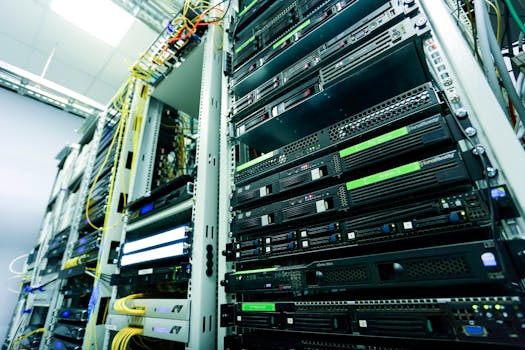 Photo: Sergei Starostin / Pexels
The heart of your home server lies in its hardware and the operating system you choose to run on it. Your selection will largely depend on your intended use cases, budget, and technical expertise. When it comes to hardware, you have a few main paths: repurposing an old computer, buying off-the-shelf components to build a new system, or opting for a low-power mini PC like a Raspberry Pi. Repurposing an old PC is often the most cost-effective solution, especially if you have an unused desktop or laptop lying around. Ensure it has enough RAM (4GB minimum, 8GB+ recommended for more demanding tasks) and a capable processor (Intel Core i3/i5 equivalent or better) to handle your desired services. The most critical component will be storage: invest in reliable, high-capacity hard drives (HDDs) for bulk storage and a smaller Solid State Drive (SSD) for the operating system to ensure snappy performance. Consider drives specifically designed for server or NAS use, such as Western Digital Red or Seagate IronWolf, as they are built for continuous operation.
Building a new system offers maximum flexibility but comes with a higher initial cost. You can choose components optimized for low power consumption, quiet operation, and expandability. Mini-ITX motherboards, low-power CPUs (like Intel Celeron or Pentium, or AMD Ryzen APUs), and efficient power supplies are excellent choices for a dedicated home server. Remember to account for future expansion, especially concerning drive bays and RAM slots. For very light tasks, such as a simple file share or ad-blocker (Pi-Hole), a Raspberry Pi can be an incredibly energy-efficient and affordable option, though its processing power and storage capabilities are limited compared to a full PC.
Once your hardware is sorted, the next crucial step is selecting the operating system (OS). This is where the German market doesn't differ significantly from international recommendations, but local support communities can be valuable. Popular choices include:
1. **FreeNAS/TrueNAS CORE**: This is a powerful, enterprise-grade open-source NAS operating system based on FreeBSD. It's excellent for data integrity (using ZFS file system), robust file sharing, and virtualization. It has a web-based GUI, making management relatively straightforward once installed, but it demands more RAM (8GB minimum, 16GB+ recommended). It's ideal for users prioritizing data protection and advanced features.
2. **OpenMediaVault (OMV)**: Based on Debian Linux, OMV is a user-friendly and highly extensible solution for network-attached storage. It's lighter on resources than TrueNAS and offers a clean web interface for managing storage, users, and various plugins (e.g., Docker, Plex, Nextcloud). It's a great choice for beginners due to its ease of use and extensive community support.
3. **Ubuntu Server / Debian**: For those comfortable with the command line, a barebones Linux distribution like Ubuntu Server or Debian offers ultimate control and flexibility. You install only the services you need, leading to a very lean and efficient system. This path requires more technical knowledge but allows for deep customization and can be incredibly powerful. Many tutorials are available for setting up specific services on these distributions.
4. **Unraid**: This commercial (paid license) OS is popular for media servers due to its unique approach to storage. It allows you to mix and match different sized hard drives into a single array with parity protection, and it excels at running Docker containers and virtual machines. It's very flexible and user-friendly for complex setups.
Consider your comfort level with Linux, the features you absolutely need, and the hardware resources you have available. Installing the OS typically involves creating a bootable USB drive and following on-screen instructions, much like installing any other operating system. For German users, ensuring the system locale and keyboard layout are correctly configured during installation is a minor but important detail.
Essential Services and Configuration for Your Home Server DE
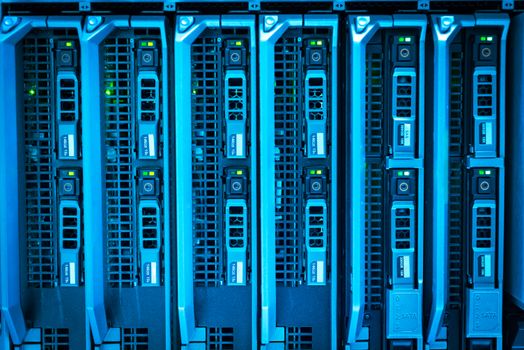 Photo: panumas nikhomkhai / Pexels
With your hardware assembled and operating system installed, the real fun begins: configuring your home server with essential services that bring its capabilities to life. The specific services you choose will directly reflect the purpose you defined in the initial planning phase. However, some core functionalities are almost universally desired for a home server, especially one serving a German household where data security and local control are often prioritized.
**1. File Sharing (SMB/NFS):** This is arguably the most fundamental service. Server Message Block (SMB), often called Samba on Linux systems, allows Windows, macOS, and Linux clients to access shared folders on your server. Network File System (NFS) is typically used for Linux-to-Linux sharing but can also be configured for macOS. Setting up shared folders means all your devices can easily store, retrieve, and modify files on the central server. For example, you can have a shared 'Documents' folder accessible from your laptop, a 'Photos' folder for family memories, and a 'Backups' folder for automatic system images. Ensure you set appropriate user permissions to control who can access what. This forms the backbone of a personal cloud, eliminating the need for services like Dropbox or Google Drive for local file access. Learning how to set up a home server de for file sharing is a primary step for most users.
**2. Media Streaming (Plex/Jellyfin):** If you have a large collection of movies, TV shows, or music, a media server is a game-changer. Plex and Jellyfin are two of the most popular choices. Both organize your media library with rich metadata, posters, and summaries, and then stream it to virtually any device – smart TVs, smartphones, tablets, gaming consoles, and web browsers. Plex is known for its polished user interface and ease of setup, while Jellyfin is a fully open-source alternative that offers more control and privacy. Both typically involve installing the server software, pointing it to your media folders, and then installing client apps on your playback devices. This transforms your home server into a powerful entertainment hub, allowing you to cut down on streaming subscriptions and enjoy your content on your terms.
**3. Backup Solutions:** Data integrity is paramount. While your home server centralizes data, it also becomes a single point of failure if not properly backed up. Implement a robust backup strategy. This could involve backing up critical data from your server to an external USB drive, another network share, or even a cloud service (though this defeats some of the privacy benefits). Tools like rsync (command-line), Duplicati (cross-platform GUI), or built-in backup features of your chosen OS (e.g., TrueNAS snapshots) are invaluable. Remember the 3-2-1 backup rule: at least three copies of your data, stored on two different types of media, with one copy offsite. This ensures that even in the event of a catastrophic server failure or physical damage, your data remains safe.
**4. Remote Access (VPN/Reverse Proxy):** To access your server's services when you're outside your home network, you'll need remote access. The most secure method is typically a Virtual Private Network (VPN) server running on your home router or the server itself (e.g., OpenVPN, WireGuard). This creates a secure, encrypted tunnel to your home network, making it appear as if your remote device is physically connected. Alternatively, for specific web-based services (like Nextcloud or Plex's web interface), a reverse proxy (e.g., Nginx Proxy Manager, Caddy) combined with a dynamic DNS service allows you to access services via a domain name (e.g., `mycloud.de`) with proper SSL encryption. Always prioritize security when setting up remote access, ensuring strong passwords and up-to-date encryption protocols. For those looking to dive deeper into secure networking, exploring topics like
how to configure a firewall can provide crucial insights into protecting your home server from external threats.
Security, Maintenance, and Advanced Tips for Your Home Server
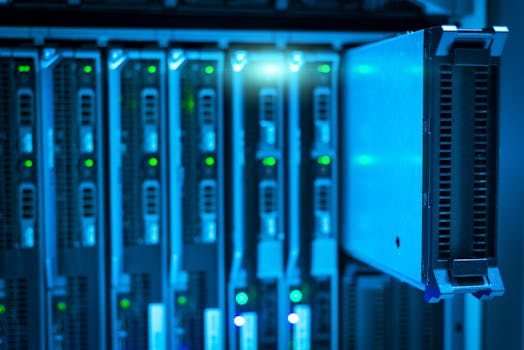 Photo: panumas nikhomkhai / Pexels
Once your home server is up and running, the journey doesn't end. Ongoing security, regular maintenance, and exploring advanced functionalities are crucial for ensuring its longevity, reliability, and continued utility. Neglecting these aspects can lead to data loss, security breaches, or a server that simply doesn't perform as expected.
**Security Best Practices:**
* **Strong Passwords:** This is non-negotiable. Use complex, unique passwords for all user accounts and services on your server. Consider a password manager.
* **Firewall Configuration:** Enable and properly configure a firewall (like UFW on Linux or the built-in firewall on TrueNAS/OMV). Restrict access to only the necessary ports and IP addresses. If you're opening ports for remote access, be extremely judicious.
* **Software Updates:** Regularly update your operating system and all installed software. Updates often include critical security patches that protect against newly discovered vulnerabilities. Many server OSes offer automated update mechanisms, but it's wise to review them periodically.
* **SSH Security:** If you use SSH for remote command-line access, disable password authentication and rely solely on SSH keys. Change the default SSH port from 22 to a non-standard one. Implement fail2ban to automatically block IP addresses that attempt too many failed login attempts.
* **User Permissions:** Follow the principle of least privilege. Grant users only the permissions they need to perform their tasks, no more. Avoid running services as the root user whenever possible.
* **Physical Security:** While often overlooked, physical access to your server is a major security risk. Keep your server in a secure location, preferably locked away, and ensure only trusted individuals have access to it.
**Maintenance Routines:**
* **Regular Backups:** As mentioned before, backups are critical. Automate your backup routines and periodically test them to ensure data can be successfully restored. Store backups offsite if possible.
* **Disk Health Monitoring:** Use S.M.A.R.T. (Self-Monitoring, Analysis and Reporting Technology) tools to monitor the health of your hard drives. Many server OSes integrate this, providing early warnings of potential drive failures.
* **Log File Review:** Periodically review system logs for unusual activity or errors. This can help identify problems before they become critical.
* **Resource Monitoring:** Keep an eye on CPU, RAM, and disk usage. High utilization can indicate a misconfigured service or a need for hardware upgrades.
* **Dust Cleaning:** Hardware maintenance is just as important. Regularly clean dust from fans and heatsinks to prevent overheating and ensure optimal performance. This is especially important in Germany where homes can sometimes be dustier due to older heating systems.
**Advanced Tips:**
* **Virtualization (Proxmox/ESXi):** For more advanced users, consider running your server OS as a virtual machine on a hypervisor like Proxmox VE or VMware ESXi. This allows you to run multiple independent servers (e.g., one for media, one for smart home) on a single physical machine, isolating services and simplifying management.
* **Docker Containers:** Docker is a powerful tool for deploying applications in isolated containers. It simplifies the installation and management of services like Plex, Nextcloud, and Home Assistant, making them portable and less prone to conflicts.
* **UPS (Uninterruptible Power Supply):** A UPS provides battery backup in case of a power outage, allowing your server to shut down gracefully, preventing data corruption and hardware damage. This is a wise investment for any critical server setup.
* **Dynamic DNS (DDNS):** If your internet service provider assigns you a dynamic IP address, a DDNS service will automatically update a domain name to point to your current home IP, making remote access easier and more reliable.
By diligently following these security and maintenance practices, and exploring advanced options as your skills grow, your home server in Germany will serve you reliably for years to come, providing a secure and personalized digital experience.
